
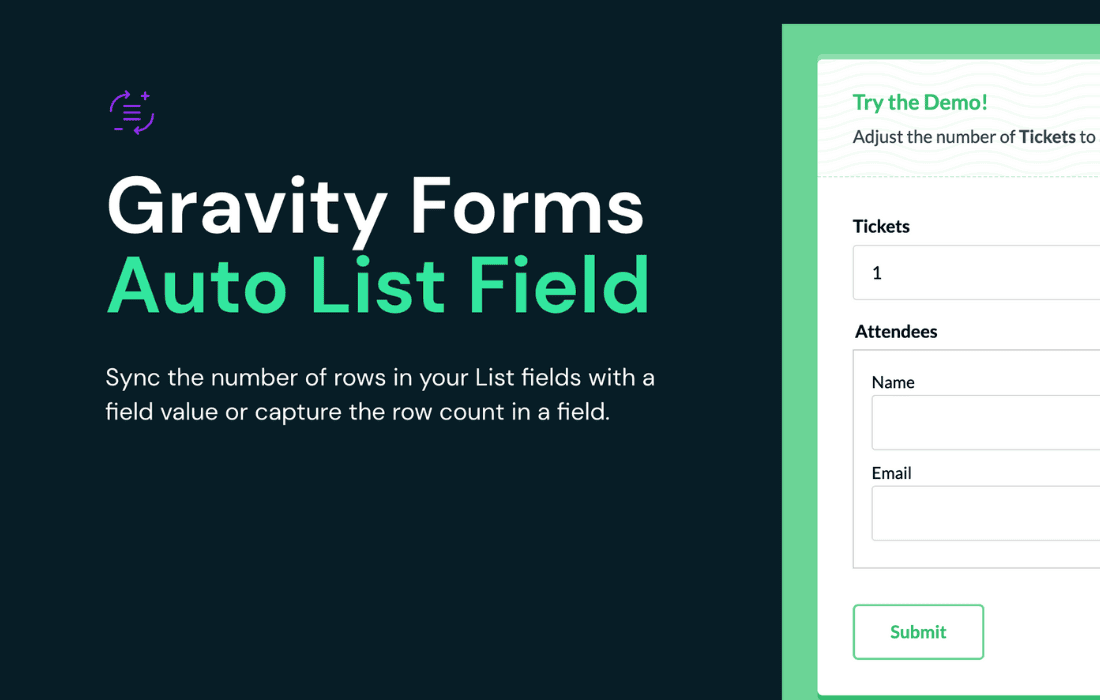
Gravity Perks Auto List Field transforms the standard Gravity Forms List field into a dynamic, automated powerhouse. If you have ever struggled with users manually typing redundant data into your forms, this plugin is your solution. By automatically populating List field rows based on user selections or existing data, you eliminate tedious data entry, reduce user friction, and ensure your form submissions are accurate and consistent every single time.
Key Features
- Dynamic Population: Automatically populate List field rows based on selections made in other form fields, such as Drop Downs, Radio Buttons, or Checkboxes.
- Seamless Integration: Works natively with Gravity Forms, ensuring that your automated lists behave exactly like standard List fields, including support for existing form validation and submission processes.
- Customizable Triggers: Define exactly when and how rows should be added or removed from your List field, giving you granular control over the user experience.
- Support for Multiple Fields: Configure Auto List Field to watch multiple source fields, allowing for complex, multi-layered data entry scenarios.
- Developer Friendly: Built with developers in mind, the plugin offers hooks and filters to extend functionality for highly customized requirements.
- Consistent Data Formatting: Ensure that the data captured in your List fields is formatted correctly, making it easier to process, export, or integrate with third-party CRMs and databases.
Use Cases / Who It’s For
Gravity Perks Auto List Field is designed for site administrators, developers, and business owners who rely on Gravity Forms to collect structured data. If your forms require users to build lists based on previous choices, this plugin is an essential tool for your workflow.
For example, if you run an e-commerce site, you can use this plugin to automatically populate a “Line Items” list field based on a user‚Äôs selection of products from a multi-select field. Instead of forcing the user to type in product names and quantities, the form does the heavy lifting for them. Similarly, event planners can use it to generate attendee registration rows based on the number of tickets selected, or project managers can use it to create task lists based on selected project phases. By automating these repetitive tasks, you significantly improve the user experience, leading to higher completion rates and cleaner, more reliable data for your business operations.
Setup / How It Works
- Install and Activate: Ensure you have both Gravity Forms and the Gravity Perks core plugin installed and active on your WordPress site.
- Add a List Field: Add a standard List field to your Gravity Form.
- Configure the Perk: Access the Auto List Field settings within the List field’s general settings tab.
- Define Source Fields: Select the source fields (e.g., a Drop Down or Checkbox field) that should trigger the automatic population of the List field.
- Map Your Data: Configure the mapping settings to determine which values from your source fields should populate specific columns within your List field.
- Test and Save: Preview your form to ensure the List field updates dynamically as intended, then save your changes.
Similar Plugins
While various snippets and custom development approaches exist to manipulate Gravity Forms data, Gravity Perks Auto List Field is unique in its dedicated, plugin-based approach to automating List field population. Other Gravity Perks modules, such as Gravity Forms Populate Anything, can sometimes be used in conjunction with or as an alternative for more complex data-fetching scenarios, but Auto List Field remains the most direct solution for specifically automating the List field interface.