
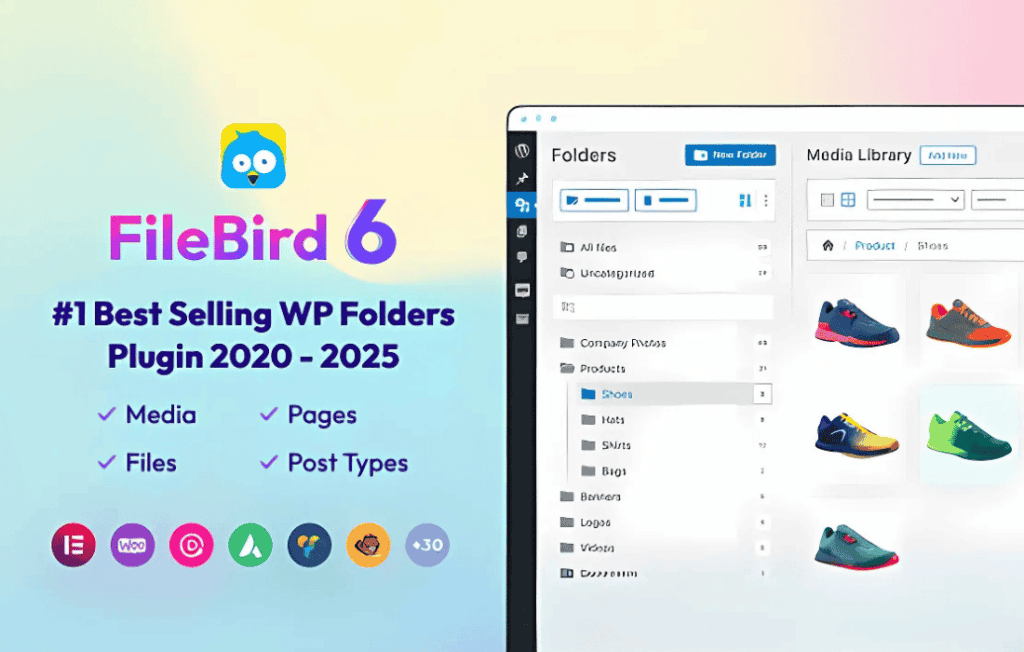
If you have ever spent precious minutes scrolling through an endless, unorganized list of images and documents in your WordPress Media Library, you know how frustrating file management can become. FileBird transforms your cluttered media dashboard into a structured, professional filing system. By allowing you to organize your files into folders and subfolders, it restores order to your workflow, ensuring that you can find, move, and manage your assets in seconds, not minutes.
Key Features
- Intuitive Drag-and-Drop Interface: Organize your files exactly like you do on your computer. Simply drag and drop images, videos, and documents into folders to keep your library clean and categorized.
- Unlimited Folders and Subfolders: Build a hierarchy that matches your business needs. Create as many folders and subfolders as you require to maintain a logical structure for your content.
- Smart Context Menu: Right-click on any folder to quickly rename, delete, or create new subfolders, giving you total control over your file structure without navigating away from the library view.
- Seamless Integration: FileBird works natively with the default WordPress Media Library. It does not create separate, hidden databases; your files remain where they are, just better organized.
- Compatibility with Page Builders: Whether you use Elementor, Divi, Beaver Builder, or the native Gutenberg block editor, FileBird integrates directly into the media selection modal, allowing you to pick files from your organized folders while building pages.
- Bulk Selection and Organization: Easily select multiple files at once to move them into specific folders, saving you significant time when importing large batches of content.
- Advanced File Filtering: Quickly locate files within specific folders, reducing the time spent searching through thousands of items.
Use Cases and Who It Is For
FileBird is an essential tool for any WordPress user who manages more than a handful of media files. It is particularly valuable for website administrators who handle large volumes of content on a daily basis.
For e-commerce store owners, FileBird is a game-changer. If you manage hundreds of product images, organizing them by category, season, or supplier makes updating your store significantly faster and less error-prone.
Content creators and bloggers benefit by keeping their featured images, infographics, and downloadable documents separated. This prevents the “media soup” that often occurs after a year or two of consistent publishing.
Web designers and agencies find FileBird indispensable when managing multiple client sites. It allows them to maintain a consistent, professional folder structure across projects, making it easier to hand over organized sites to clients who may need to upload their own assets later.
Setup and How It Works
Getting started with FileBird is designed to be effortless, requiring no technical knowledge or complex configuration.
- Installation: Install and activate the plugin through your WordPress dashboard just like any other plugin.
- Create Folders: Navigate to your Media Library. You will see a new sidebar on the left. Click the “New Folder” button to begin building your organizational structure.
- Organize Content: Drag and drop your existing media files into the newly created folders. You can also upload files directly into specific folders by selecting them before the upload process.
- Use Your Files: When you need to insert an image into a post or page, simply open the media modal. You will see your folder structure there, allowing you to navigate directly to the file you need.
Similar Plugins
While FileBird offers a unique, user-friendly approach to file management, there are other solutions in the WordPress ecosystem that provide folder-based organization. Alternatives include Media Library Folders, Real Media Library, and HappyFiles. Each of these plugins offers varying approaches to folder management, but FileBird remains a popular choice for its focus on a native-feeling user interface and broad compatibility with major page builders.