
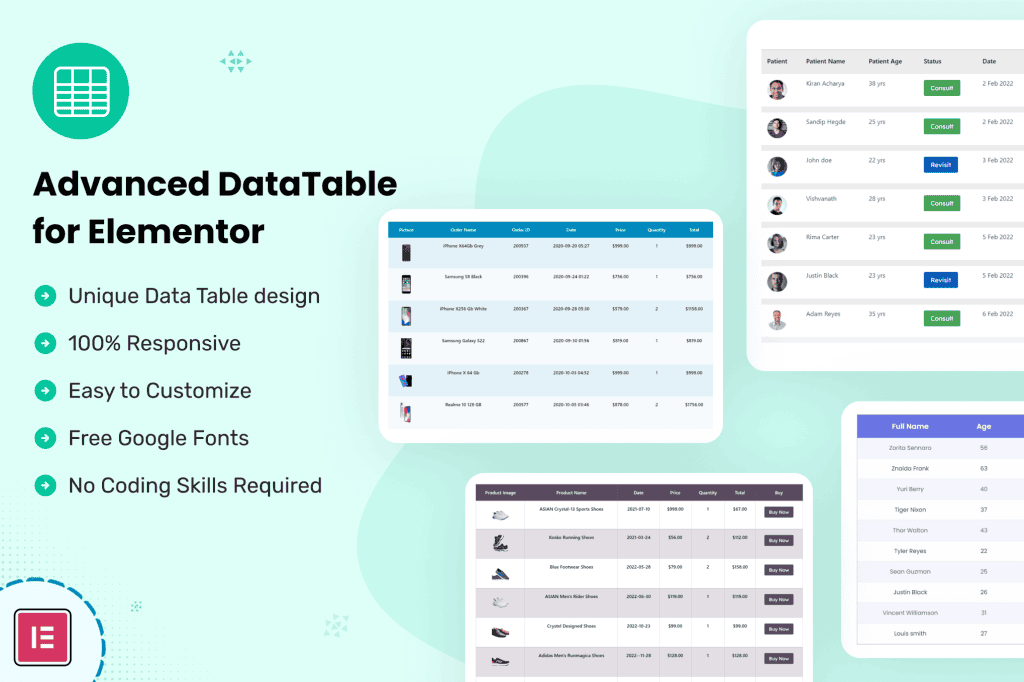
Transform your complex data into clear, interactive, and beautifully designed tables directly within the Elementor page builder. Datalentor – Advanced DataTable for Elementor empowers website owners, developers, and data analysts to display structured information without writing a single line of code. Whether you are managing product catalogs, financial reports, or large datasets, this plugin ensures your visitors can easily sort, search, and filter information, significantly enhancing the user experience on your WordPress site.
Key Features
- Elementor Native Integration: Build and customize your tables using the familiar Elementor interface, ensuring a seamless workflow and perfect design alignment with your existing site theme.
- Advanced Sorting and Filtering: Enable your visitors to find exactly what they need instantly with robust, built-in search bars, column sorting, and category filtering options.
- Responsive Design: Your data remains readable and accessible on all devices. Datalentor automatically adjusts table layouts for mobile, tablet, and desktop screens, preventing broken designs on smaller displays.
- Flexible Data Import: Effortlessly populate your tables by importing data from CSV files or JSON sources, saving you hours of manual entry and ensuring data accuracy.
- Customizable Styling: Take full control over the visual presentation. Adjust fonts, colors, borders, and spacing to match your brand identity perfectly without needing custom CSS.
- Pagination and Length Control: Manage large datasets effectively by breaking them into manageable pages and allowing users to select how many rows they wish to view at one time.
- Interactive Elements: Enhance engagement by adding links, images, or buttons directly within table cells to create a more dynamic and functional user interface.
Use Cases / Who It’s For
Datalentor is designed for anyone who needs to present structured data professionally. E-commerce store owners utilize the plugin to create comprehensive product comparison charts, helping customers make informed purchasing decisions. Financial professionals and business owners use it to display quarterly reports, pricing tables, or service packages in a clean, readable format. Educational institutions and non-profits find it invaluable for publishing directories, event schedules, or research findings. If your website relies on presenting lists of information that would otherwise be difficult to digest, Datalentor provides the tools to turn that data into a powerful asset for your visitors.
Setup / How It Works
- Install and Activate: Upload the plugin to your WordPress dashboard and activate it as you would any other standard plugin.
- Open Elementor: Navigate to any page or post and open it with the Elementor editor.
- Drag and Drop: Locate the Datalentor widget in the Elementor sidebar and drag it onto your canvas.
- Configure Data: Use the settings panel to either manually enter your table data, link a CSV file, or connect your data source.
- Style and Customize: Use the Style tab to adjust colors, typography, and border settings to ensure the table matches your website’s aesthetic.
- Publish: Once you are satisfied with the layout and functionality, update or publish your page to make the interactive table live for your audience.
Similar Plugins
If you are exploring alternatives in the WordPress ecosystem, other notable table-building solutions include TablePress, which is a long-standing community favorite for managing tables via the WordPress dashboard, and WP DataTables, which offers extensive features for handling large and complex database-driven datasets.