
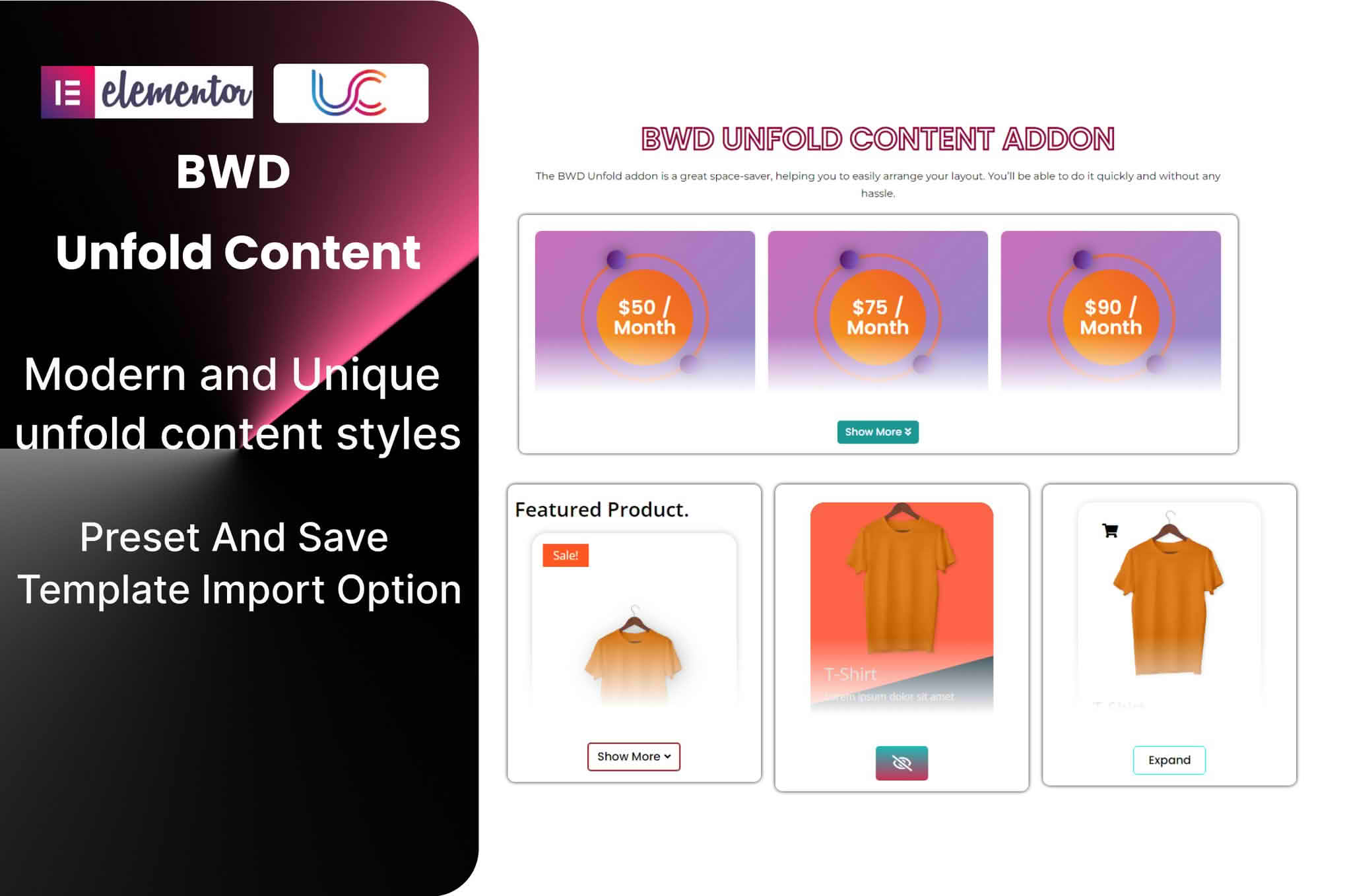
The Unfold Content Addon for Elementor is a powerful utility designed to help website owners and designers manage long-form content without cluttering their page layouts. By implementing a sleek, interactive “Read More” or “Unfold” functionality, this plugin allows you to hide excess text, images, or complex widgets behind an expandable interface. It is the perfect solution for improving user experience, reducing page bounce rates, and maintaining a clean, professional aesthetic on content-heavy websites.
Key Features
- Fully Responsive Design: Ensure your content unfolds perfectly on desktops, tablets, and mobile devices, providing a consistent experience for every visitor.
- Elementor Native Integration: Built specifically as an addon for Elementor, it works seamlessly within the familiar drag-and-drop editor interface.
- Customizable Triggers: Easily configure your “Read More” and “Show Less” button text, icons, and alignment to match your brand‚Äôs unique voice and design language.
- Smooth Animation Effects: Engage users with professional, fluid transition animations that make expanding and collapsing content feel modern and polished.
- Content Flexibility: Go beyond simple text. You can hide entire sections, images, galleries, or other complex Elementor widgets inside the unfold area.
- Height Control Options: Set a specific height limit for your content before the unfold trigger appears, giving you total control over how much information is visible at a glance.
- Performance Optimized: Engineered to be lightweight, ensuring that your site remains fast and search-engine friendly even with interactive elements enabled.
Use Cases / Who It’s For
This plugin is an essential tool for any WordPress user looking to balance information density with clean design. If you manage a blog, a service-based business, or an e-commerce store, you likely face the challenge of needing to provide detailed information without overwhelming your visitors with a “wall of text.”
Content creators and bloggers use the Unfold Content Addon to hide lengthy post excerpts or detailed author biographies, allowing readers to choose whether they want to dive deeper into the content. For business websites, it is ideal for FAQ sections, detailed service descriptions, or product specifications that occupy too much vertical space. By using this tool, you can keep your primary call-to-action buttons higher up on the page, which is a proven strategy for increasing conversion rates and improving overall site navigation.
Setup / How It Works
Getting started with the Unfold Content Addon is designed to be intuitive for anyone already familiar with the Elementor page builder:
- Install and Activate: Once you have installed the plugin, ensure that Elementor is active on your WordPress site.
- Drag and Drop: Open any page or template in the Elementor editor. Locate the “Unfold Content” widget in the sidebar and drag it onto your canvas.
- Add Your Content: Use the widget’s content area to insert the text, images, or other widgets you wish to hide.
- Configure Settings: Navigate to the Style and Advanced tabs to adjust the trigger button appearance, animation speed, and initial height settings.
- Publish: Preview your changes to ensure the unfold behavior meets your needs, then update or publish your page.
Similar Plugins
If you are exploring options for content toggling and expanding elements within the WordPress ecosystem, there are several alternatives available. Many users also consider the Essential Addons for Elementor, which includes a comprehensive “Content Toggle” feature, or Premium Addons for Elementor, which offers a similar “Expand” widget. Additionally, Ultimate Addons for Elementor provides robust solutions for managing long-form content through their own set of interactive widgets. Each of these options serves a similar purpose, though the Unfold Content Addon remains a focused, lightweight choice for those who want a dedicated tool specifically for the unfold functionality.