
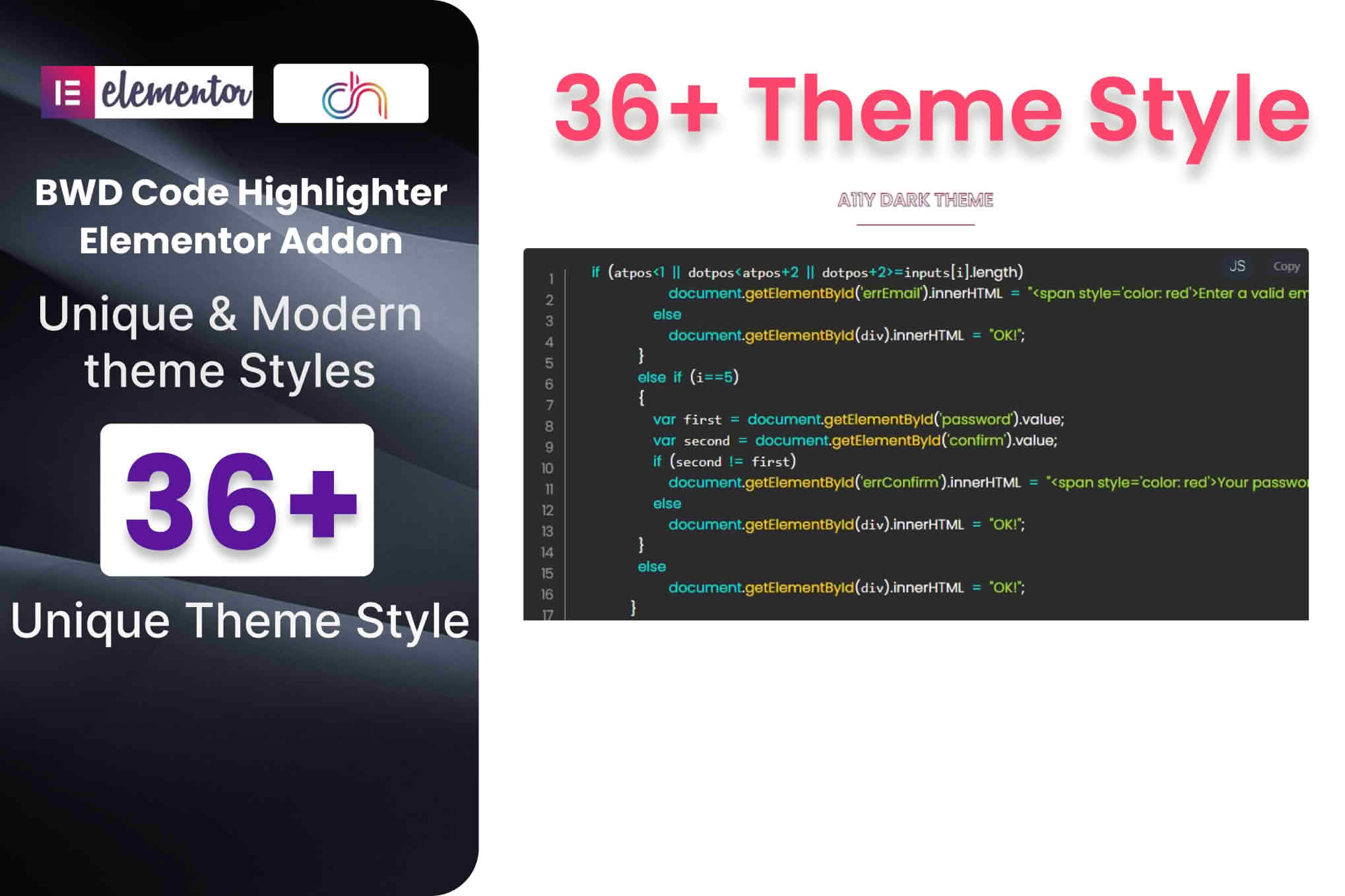
If you are a developer, technical writer, or educator building a website with Elementor, you know the struggle of displaying code snippets that are readable, professional, and aesthetically pleasing. The Code Highlighter Addon for Elementor bridges the gap between raw text and beautiful, syntax-highlighted code blocks. By integrating seamlessly into the Elementor editor, this plugin allows you to showcase programming languages with precision, ensuring your documentation, tutorials, or portfolio projects look polished and are easy for your audience to digest.
Key Features
- Extensive Language Support: Display code across dozens of popular programming and markup languages, including HTML, CSS, JavaScript, PHP, Python, SQL, and many more, ensuring your specific tech stack is covered.
- Multiple Syntax Themes: Choose from a variety of pre-built, professional color schemes to match your website’s branding and design aesthetic, making your technical content visually cohesive.
- Line Numbering: Enable or disable line numbers with a single click, helping your readers reference specific lines of code during tutorials or troubleshooting sessions.
- One-Click Copy Button: Improve user experience by providing a dedicated copy-to-clipboard button, allowing your visitors to easily grab your code snippets for their own projects without manual selection errors.
- Elementor Native Integration: Designed specifically for the Elementor page builder, this addon functions as a drag-and-drop widget, meaning you never have to touch a line of CSS or shortcode to get your code blocks looking perfect.
- Responsive Design: Ensure your code blocks look great on all devices; the plugin automatically handles overflow, providing horizontal scrolling on smaller screens so your layout remains intact.
- Customizable Styling: Adjust padding, font sizes, border radius, and background colors directly within the Elementor panel to ensure the code block fits perfectly into your existing design system.
Use Cases / Who It’s For
This plugin is an essential tool for anyone who needs to present technical information within a WordPress environment. If you are a technical blogger, it allows you to present snippets in a way that encourages engagement and clarity. For software developers creating a portfolio, it provides a professional way to showcase your coding skills and project logic to potential clients or employers.
Furthermore, it is a powerful asset for educators and course creators. If you are building an online learning platform using Elementor, you can provide students with clear, readable examples that make learning complex programming concepts much more accessible. Even for support teams documenting internal processes or public knowledge bases, this plugin ensures that troubleshooting steps and configuration examples are presented with the professional standard your users expect.
Setup / How It Works
Getting started with the Code Highlighter Addon for Elementor is designed to be intuitive, requiring no advanced technical knowledge beyond the standard Elementor workflow:
- Install and Activate: Once you have installed the plugin, it will automatically register a new widget within your Elementor editor.
- Drag and Drop: Open any page or template in Elementor and search for the “Code Highlighter” widget in the sidebar. Drag it onto your canvas where you want the code to appear.
- Paste Your Code: In the content tab of the widget, paste your raw code into the designated text area.
- Select Language and Style: Use the dropdown menus to select the programming language (for accurate syntax highlighting) and your preferred color theme.
- Configure Display Options: Toggle features like line numbers, the copy button, and custom padding settings to match your design requirements.
- Publish: Once you are satisfied with the preview, update or publish your page to display your beautifully formatted code to the world.
Similar Plugins
If you are exploring your options, there are other ways to handle code display in WordPress. Plugins such as Code Syntax Block offer standard Gutenberg block integration for those not strictly using Elementor. Additionally, Prism.js or Highlight.js based plugins are common alternatives that can be implemented via shortcodes or custom HTML widgets if you prefer a more manual, theme-agnostic approach to syntax highlighting.