
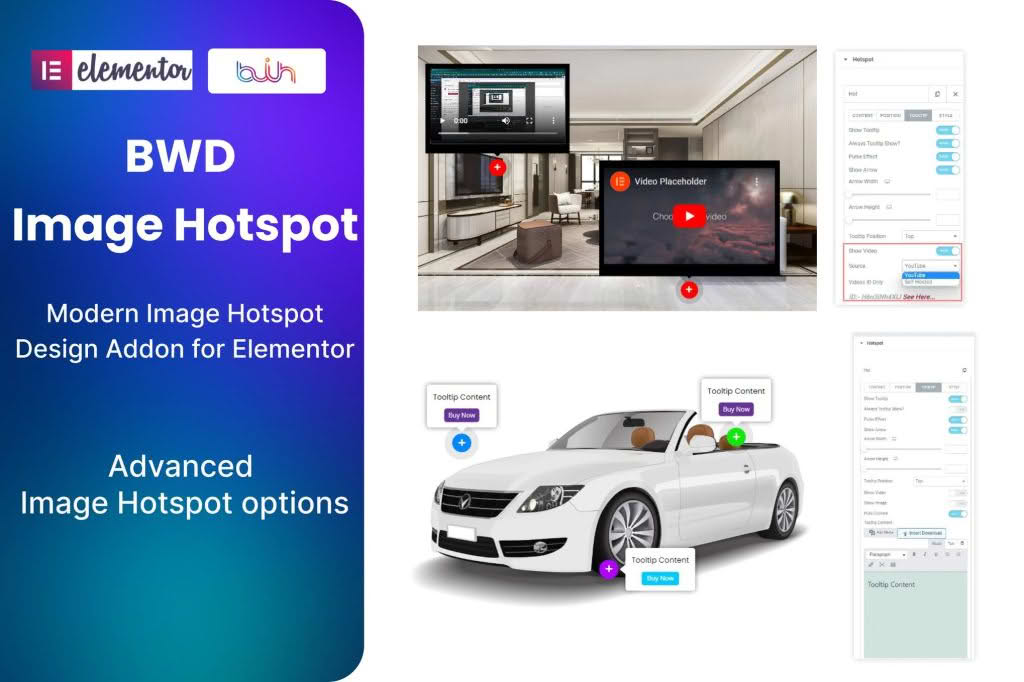
Transform your static images into engaging, interactive experiences with the Image Hotspot Addon for Elementor. Whether you are looking to provide more context to your product photos, create educational diagrams, or guide users through a visual tour, this plugin allows you to place clickable markers directly onto your images. By leveraging the power of Elementor, you can create professional-grade, interactive content without writing a single line of code, helping you boost user engagement and provide a more intuitive browsing experience for your visitors.
Key Features
- Intuitive Drag-and-Drop Interface: Seamlessly integrate with the Elementor editor, allowing you to place hotspots exactly where you need them with simple drag-and-drop functionality.
- Customizable Tooltips: Add rich content to your hotspots, including text, images, icons, and links, which appear when a user hovers over or clicks a marker.
- Flexible Marker Styles: Choose from a variety of pre-designed marker icons or upload your own custom images to perfectly match your website’s branding.
- Responsive Design: Ensure your interactive images look perfect on all devices, from desktop monitors to mobile phones, with fully responsive hotspot positioning.
- Animation Effects: Capture user attention with eye-catching animation effects for your markers, such as pulses or bounces, to encourage interaction.
- Advanced Positioning: Precisely control the location of your hotspots using percentage-based positioning, ensuring they stay aligned even when the image scales.
- Click or Hover Triggers: Choose how your users interact with your hotspots, whether you prefer them to reveal information on a simple hover or require a deliberate click.
Use Cases and Who It’s For
The Image Hotspot Addon is an essential tool for any WordPress site owner who wants to move beyond static imagery. E-commerce store owners can use this plugin to create “shoppable” images, allowing customers to click on specific items within a lifestyle photo to view product details or jump directly to a checkout page. This reduces the number of clicks required to make a purchase, effectively streamlining the buyer’s journey.
Beyond retail, this plugin is perfect for educators and bloggers. If you run a travel blog, you can use hotspots to mark locations on a map or a photo of a landmark, providing readers with quick facts or links to related articles. For technical or instructional websites, you can overlay diagrams with hotspots that reveal step-by-step instructions or component definitions, making complex information much easier to digest. Essentially, if you have an image that needs more explanation, this plugin provides the perfect interactive solution.
Setup and How It Works
Getting started with the Image Hotspot Addon is designed to be straightforward for any Elementor user:
- Install and Activate: Once you have installed the plugin, it will automatically register a new widget within your Elementor editor panel.
- Add the Widget: Drag the Image Hotspot widget onto your page or post template.
- Upload Your Image: Select the base image you want to use from your WordPress media library.
- Place Hotspots: Click to add new hotspots to the image. A settings panel will appear for each marker, allowing you to define its position and content.
- Configure Tooltips: Use the Elementor editor to build the content inside the tooltip. You can insert text, images, or even other Elementor widgets to create highly customized pop-ups.
- Style and Publish: Adjust the colors, sizes, and animation styles of your markers to match your site’s aesthetic, then save and publish your page.
Similar Plugins
If you are exploring options for interactive image content, there are other tools available in the WordPress ecosystem that offer similar functionality. These include plugins such as Hotspot for Elementor, Interactive Image Builder, and various premium image mapping add-ons available through larger Elementor widget libraries. Each of these tools offers varying levels of customization and integration, so it is recommended to review their specific feature sets to see which best aligns with your project requirements.